
Bublr Guide
Menu Walkthrough
This section of the manual will go through the majority of the available options found in the menu. Learn how to access and navigate every feature in the Bublr app.


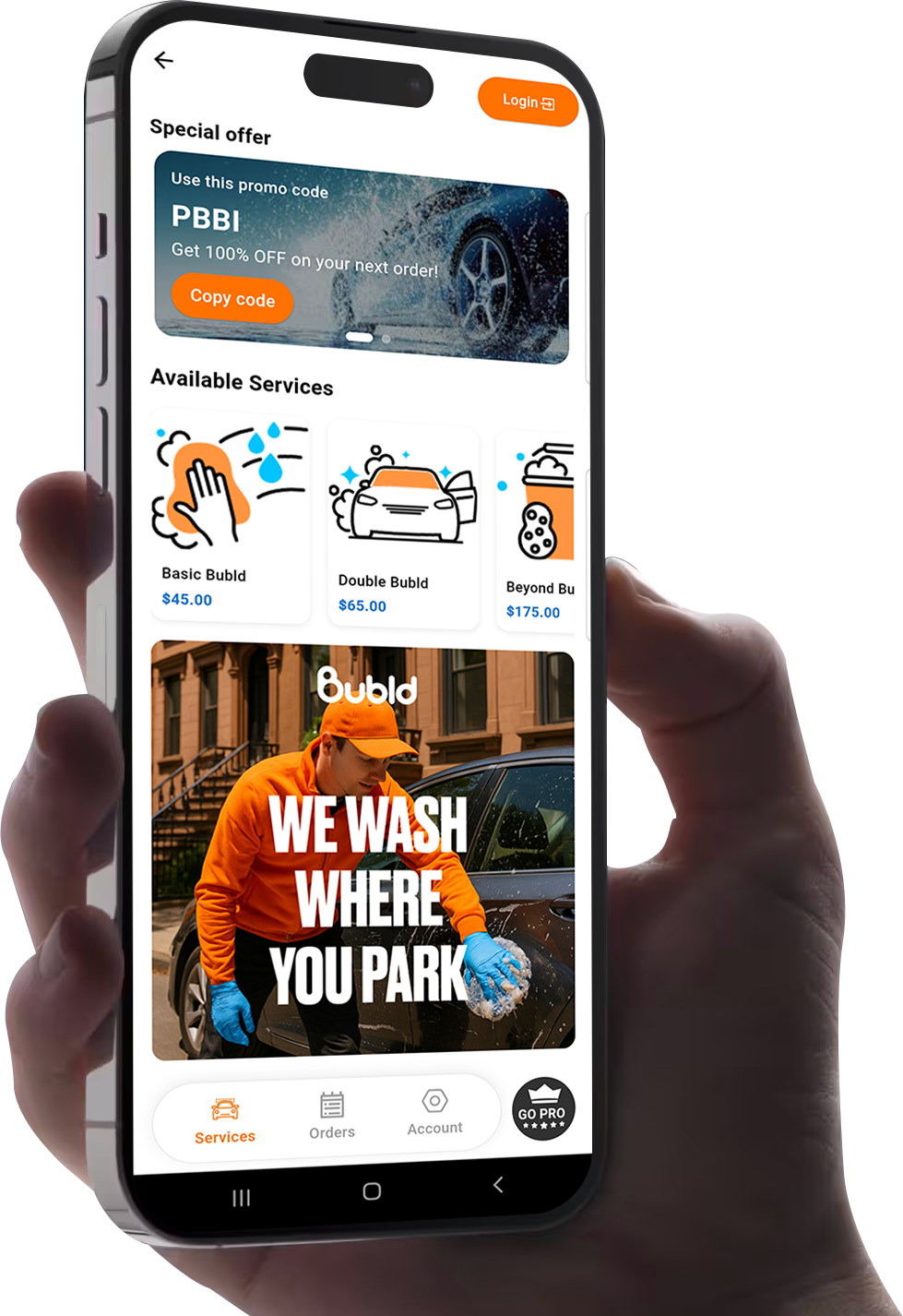
How to Access the Menus
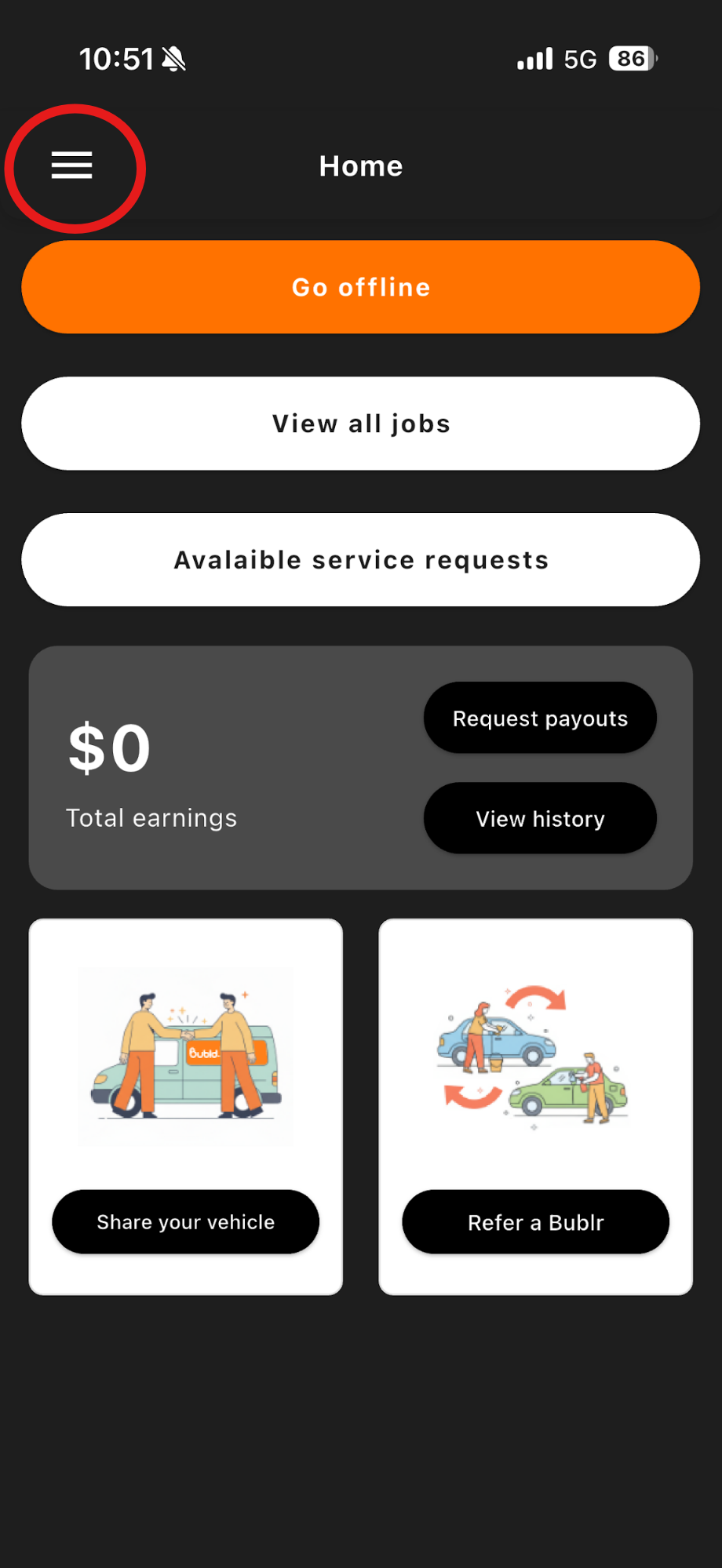
Home Screen
- 1Click on the menu options on the top left of the home screen.
- 2Now the following screen on the right will show up.
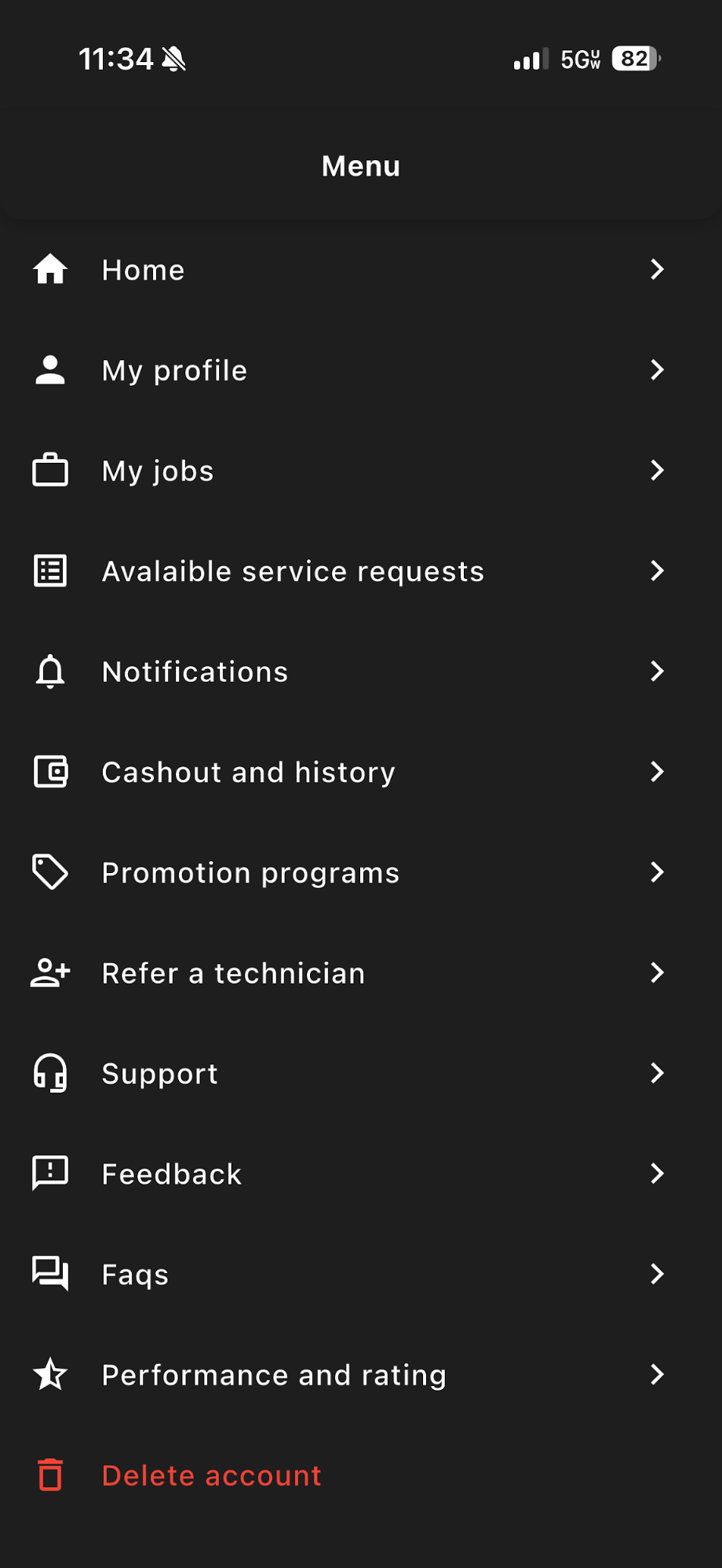
Menu Screen
My Profile Page
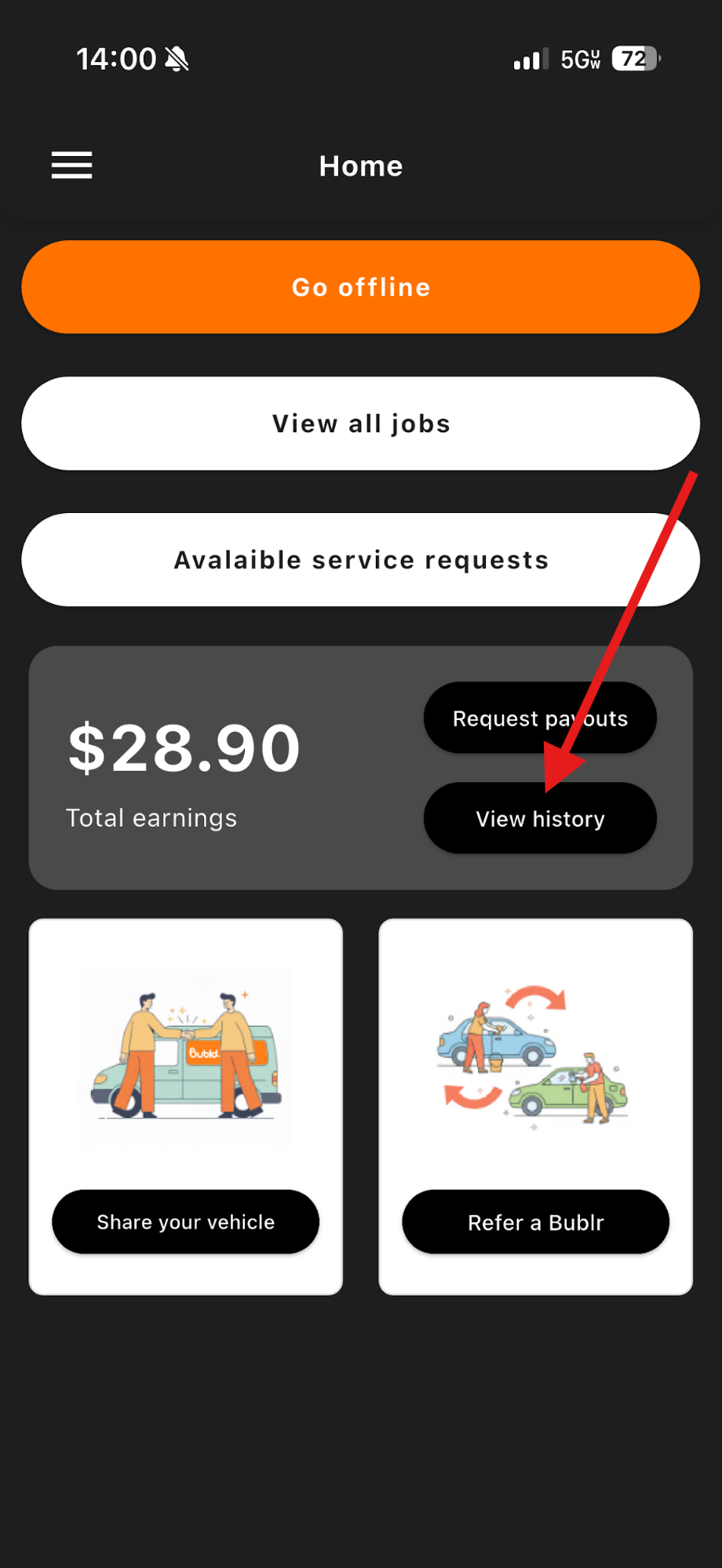
Once the "My profile" tab has been clicked, all documents and personal information can be found here.
- This includes your preferred work hours, phone number, email, etc…
- You will be able to edit all of the information found in this tab.
NOTE
Any time you update your documents, the Bubld admin team must re-verify them. (This includes your car registration, insurance, and driver's license.)
Jobs Completed
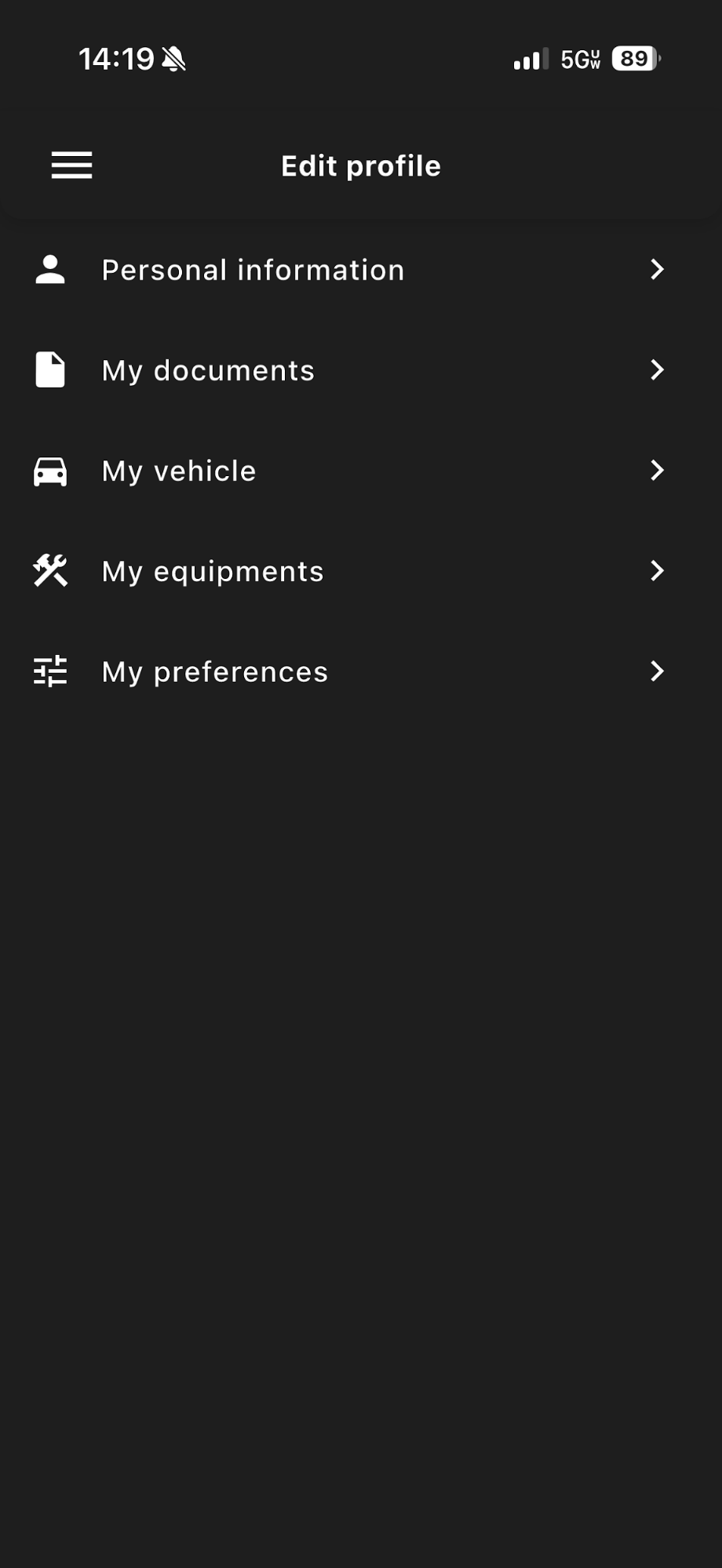
This is a part of the "My jobs" tab found in the menu. Here is where you can find all the Jobs you may have upcoming, in progress, or have already completed.
- 1Click on any of the 3 circled options.
- 2This allows you to view all your jobs.
For more information regarding the My jobs page please refer to Part 2 of the manual.
Available Service Requests
This page is also accessible through the Menu's tab.
For more information on the service requests page please go to page 17.
Notifications Page
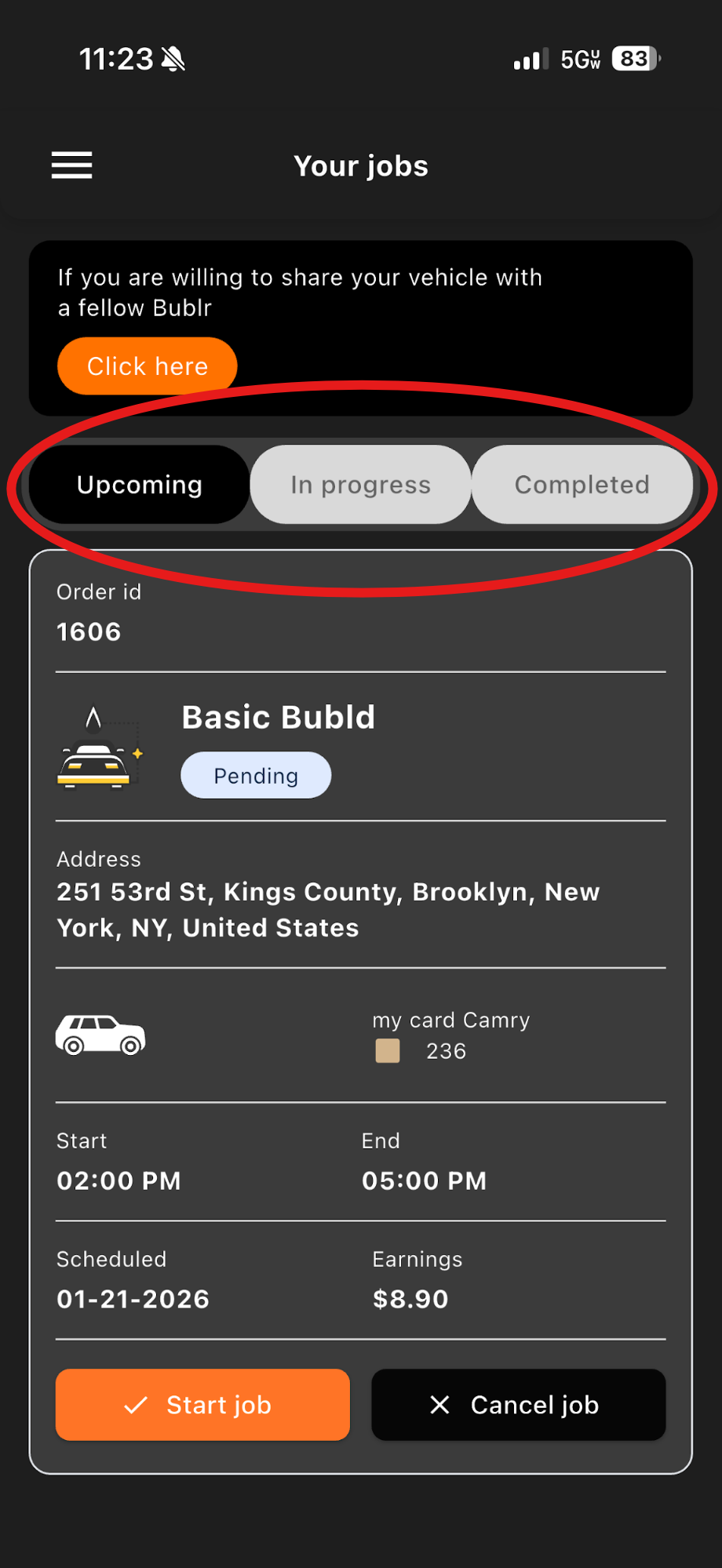
This section is very important to check multiple times daily (2-4 times) so you don't miss time-sensitive updates. It can be found in between the "service requests" and "Cashout and History" tabs.
Cashout and History
Cashout Page
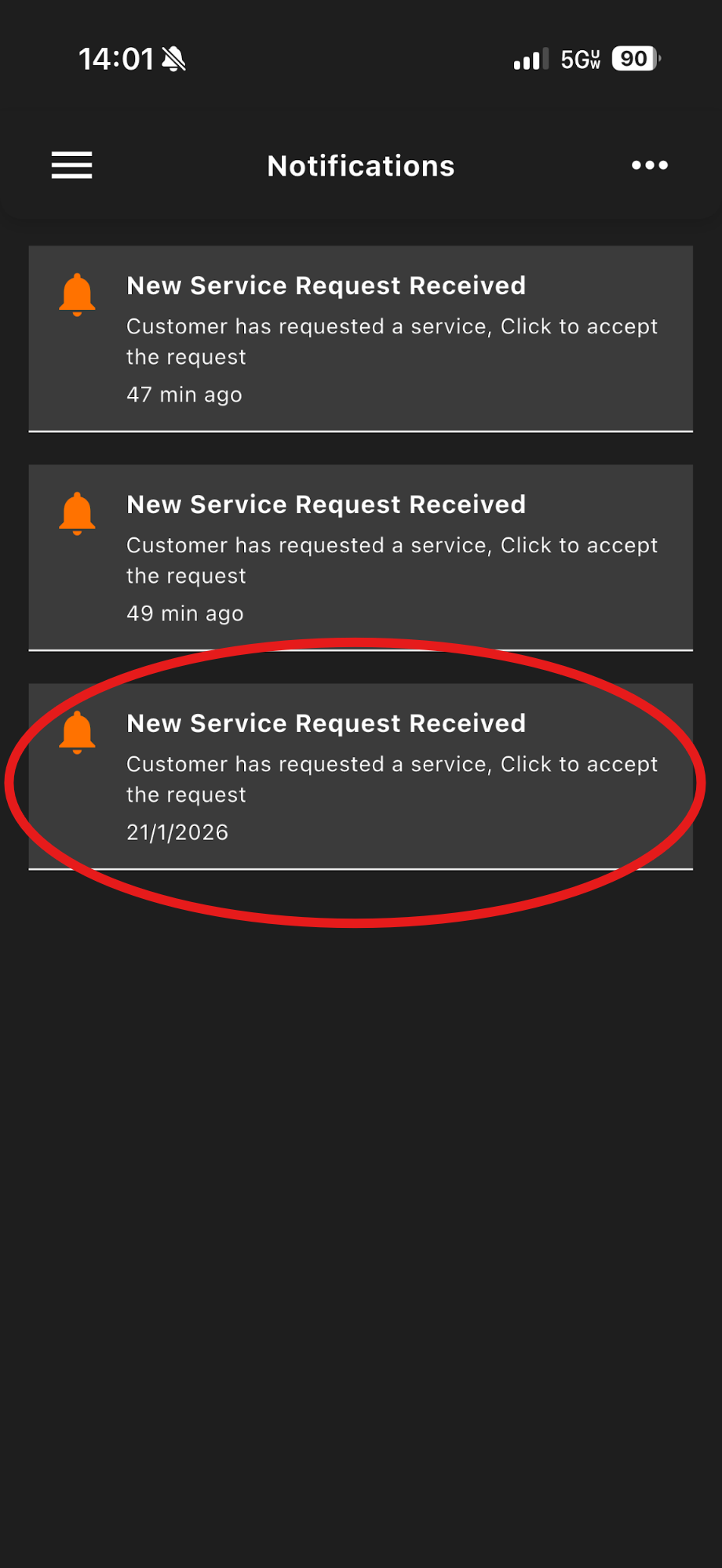
This section can be found within the Home page of the app. And is one of the options within the Menus screen. This is where you will find all the information regarding your payments and cash earned.
- These 2 buttons titled "request payout" and "View history" are where you will find all the information needed.
- Here is where you can see your Cashout history after clicking "View history".
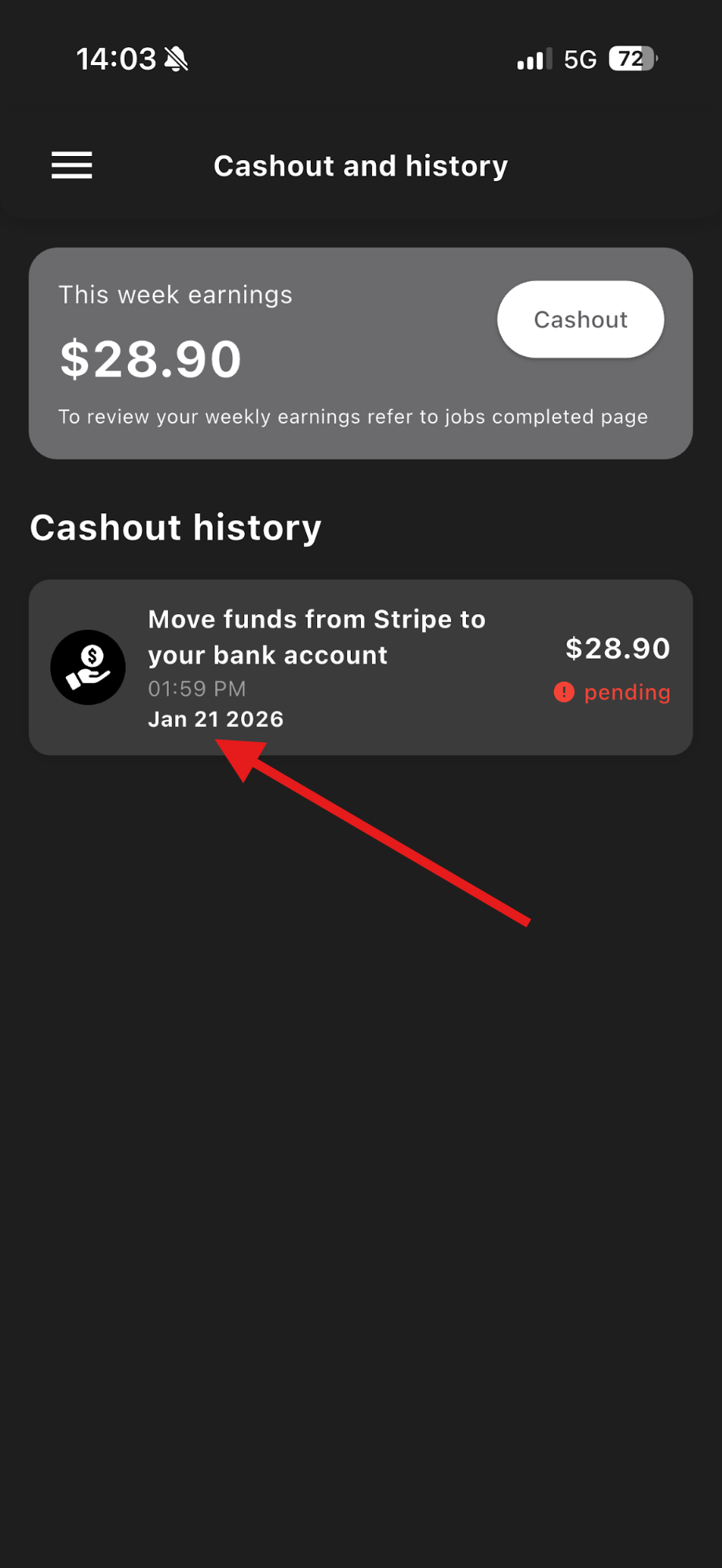
Cashout History
Promotion Program Page
Bubld will sometimes drop bonus opportunities when we need more Bublrs, letting you earn extra money by working specific days, times, or locations.
- These promos can really add up, like getting an extra $5 for every wash you complete during busy hours or special days.
- Make it a habit to check this page every couple of days so you don't miss out on easy ways to boost your earnings.
Support Page
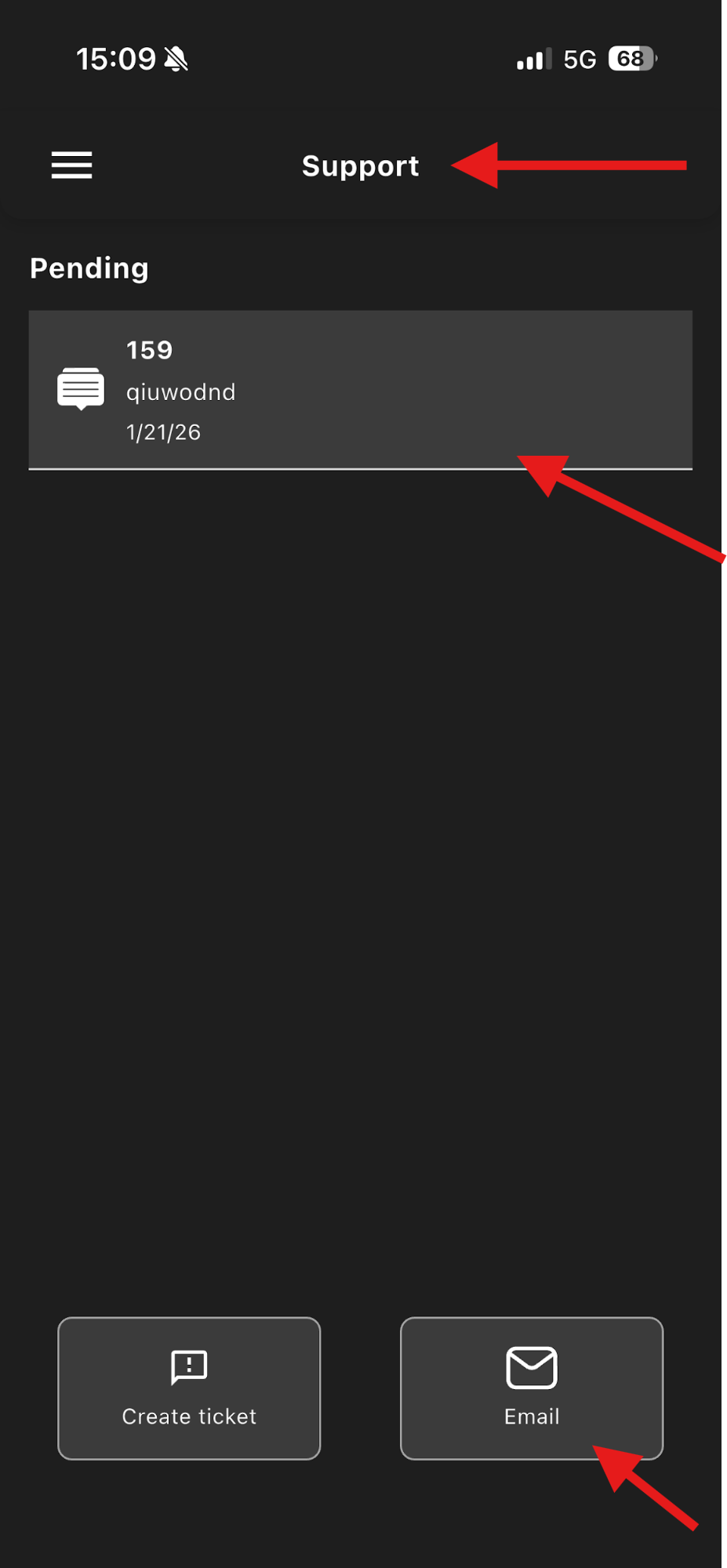
Any ongoing inquiries/conversation between you and Bubld's can be viewed here. You can also click on "create ticket" and Email Bubld's support team. All previous tickets made will also be visible on this page.
Here is where you can create another ticket and email us directly to get in contact with us.
Feedback Page
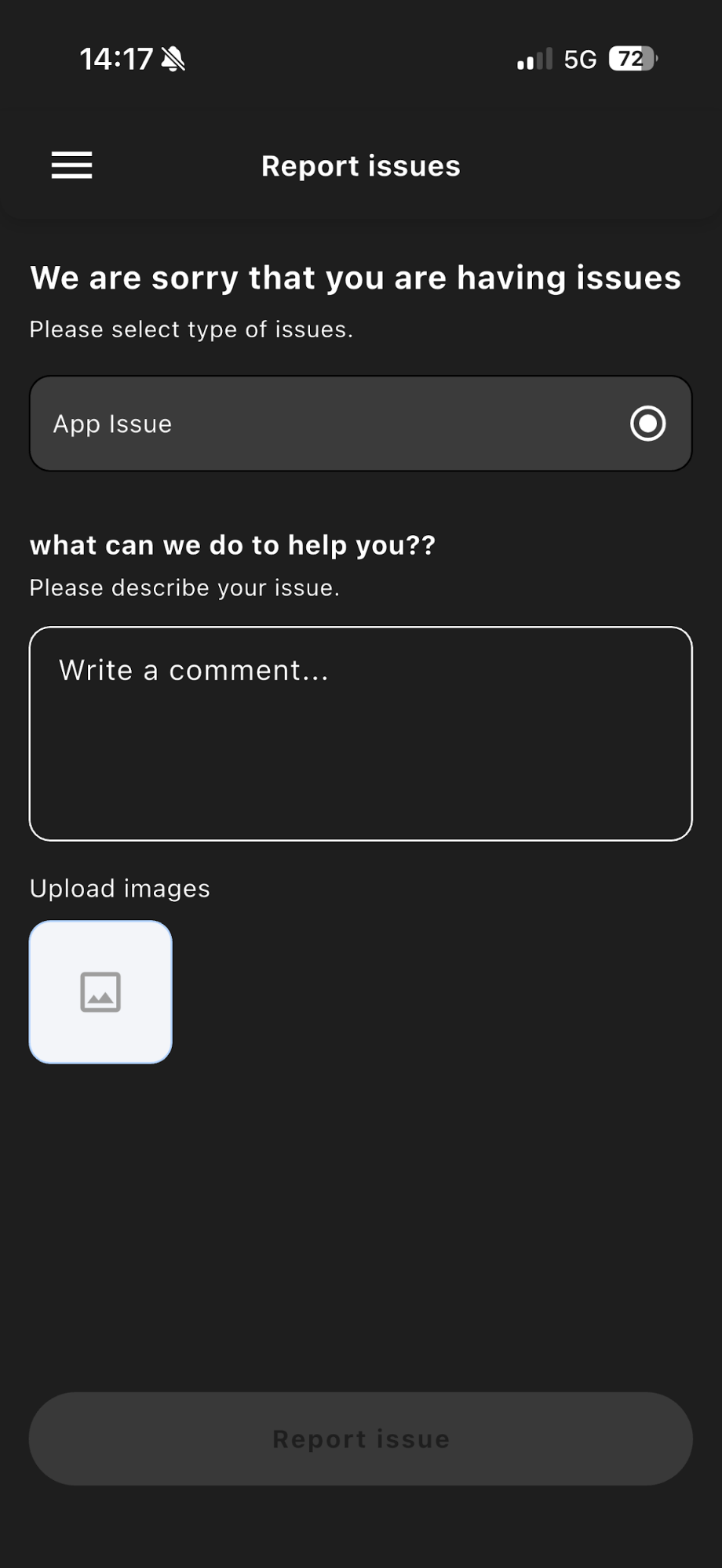
This is similar to the report issue button, but for any bugs or issues you may find within the app. We ask that you may provide a detailed summary of what occurred and provide screenshots of the issue you ran into.
- This is what the feedback page looks like.
- Here is where you will describe the situation that has occurred.
- Here you will provide screenshots of said situation.
FAQ
For any other questions you may have please click on the "FAQ's" tab located in the Menus page in between "feedback" and the "Performance and rating" tab. Here you will find a set of many questions that customers have frequently asked for.
Performance Rating
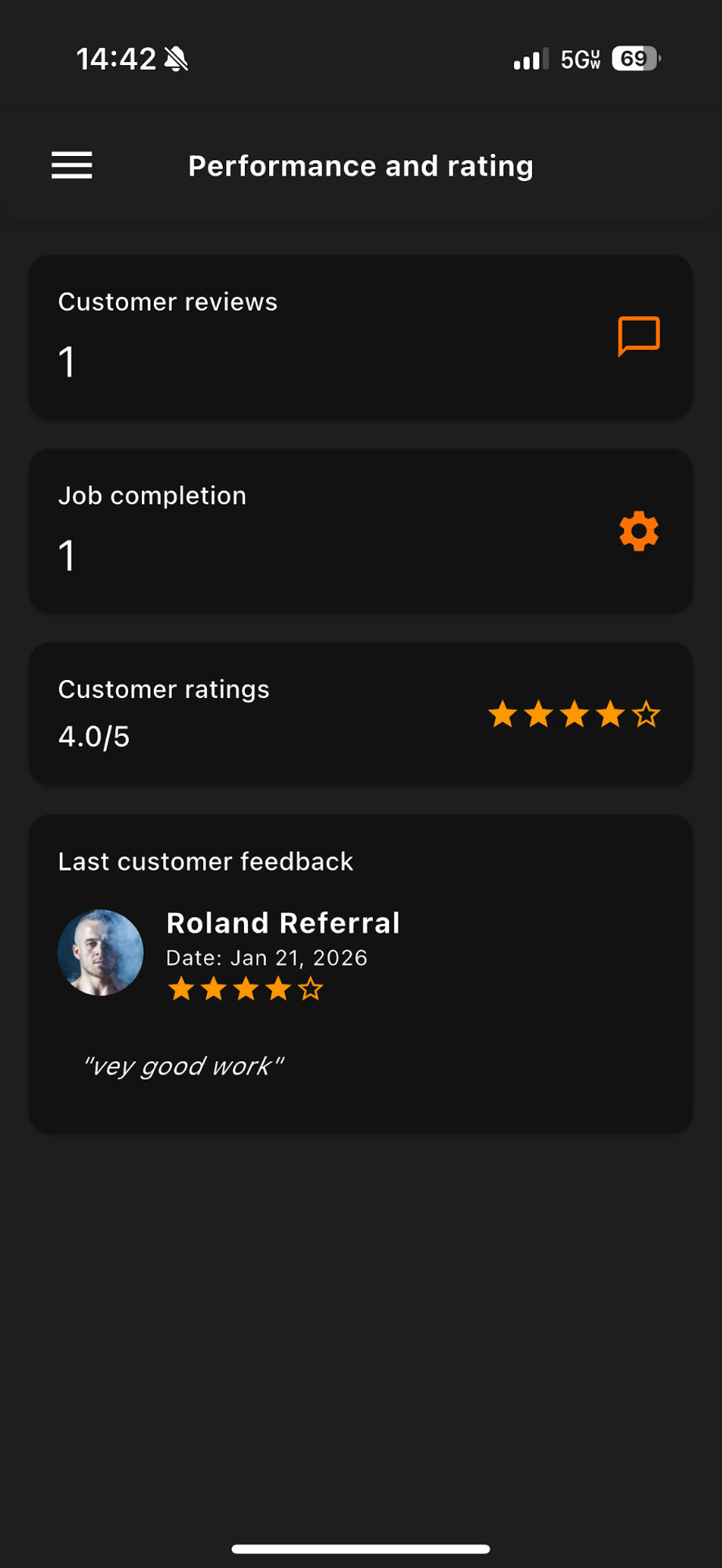
This page can be found in between the "Delete account" tab and "FAQ's" tab in the Menus page. This page is one of the last tabs but probably one of the more important ones. This is where you will be able to see when and how the customers rate you according to your work, the amount of customer reviews, jobs completed, and your overall rating which can affect how fast you may receive notifications regarding jobs.
Explore the Full Guide.
Each section below covers a specific part of the Bublr experience in detail. Select any topic to get started.
Getting Started
Complete onboarding walkthrough — app download to first job offer.
Job Selection
How to read a job offer and decide whether to accept.
Starting My Job
What to do from the moment you accept through job completion.
Menu Walkthrough
A full tour of every screen and feature in the Bublr app.
Be a Team Player
How Bublrs support each other and uphold quality standards.
Reporting Issues
How to report problems during or after a job.
Sharing Your Vehicle
Guidelines for Bublrs who share a vehicle with a partner.
Referring Bublrs
How the referral program works and how to earn from it.
Our Policy
Learn about Bublr's policies and guidelines.
Ready to Get Started?
You now know exactly how Bubld works. The next step is yours.
Legal Contractor Notice: Bublrs are independent contractors, not employees of Bubld. Availability, earnings, and workload vary by location and demand. Service areas are currently limited — check the app to confirm availability in your area.