
Step-by-Step Guide
How to Start and Complete a Bublr Job.
You've accepted a job. Now it's time to deliver. This guide walks you through every step — from navigating to the customer's location, to uploading your photos, to tapping the final completion button and getting paid. Follow each step in order and you'll be set up for a 5-star result every time.


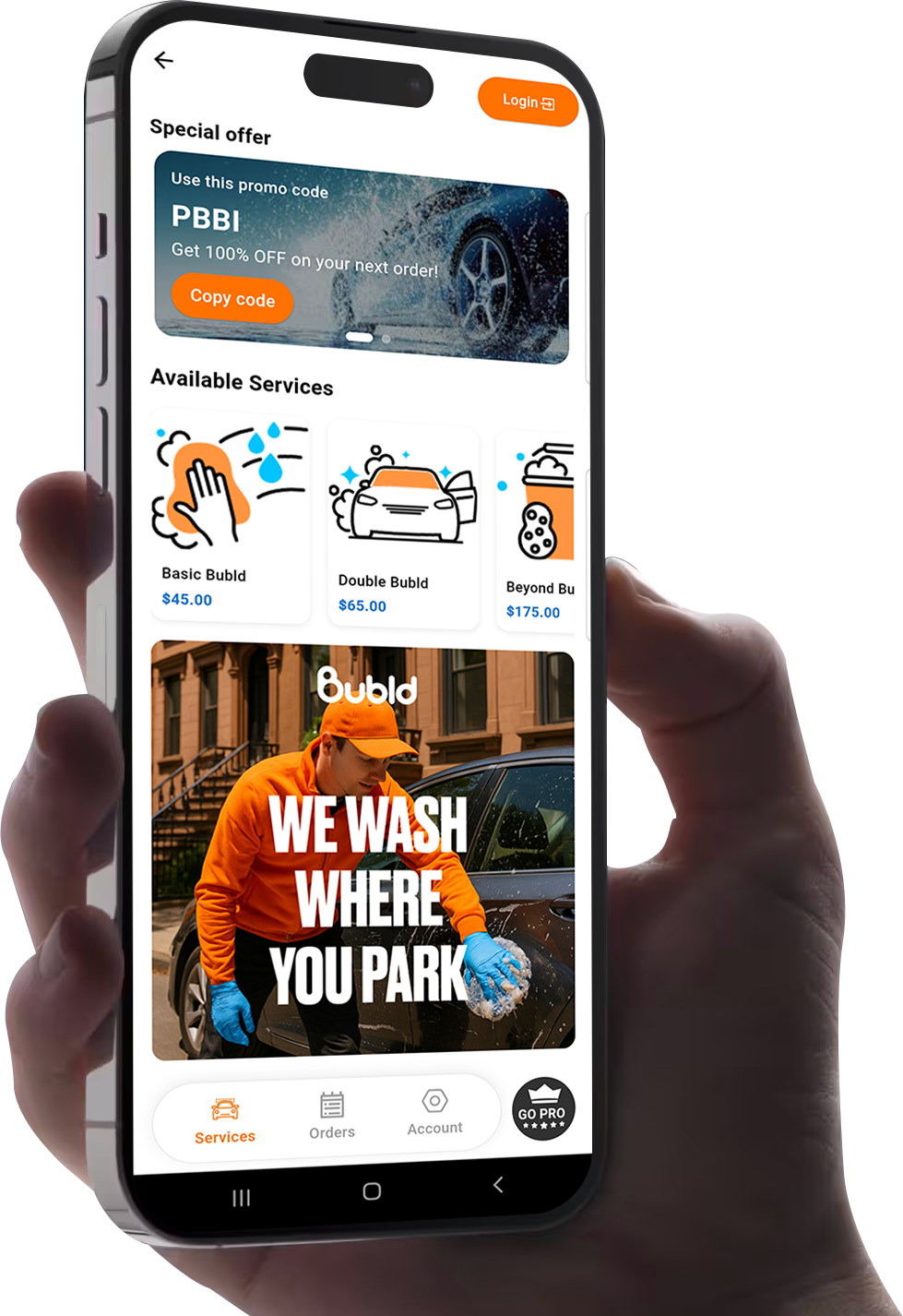
Open My Jobs and Start Your Job
Before heading out, open the Bublr app and navigate to My Jobs to review your job details one final time — address, vehicle info, wash package, and timing.
- 1From the Home screen, tap the Menu icon in the top-left corner.
- 2Tap My Jobs from the side menu.
- 3Find and tap the job you're about to start.
Tap 'Start Job' and the Eye Icon
Once you've selected your job, you'll see two controls to proceed — tap both in order to activate your job and view its complete details.
- 1Tap the Start Job button to activate the job.
- 2Tap the Eye icon to open the full Job in Progress screen with all details and controls.
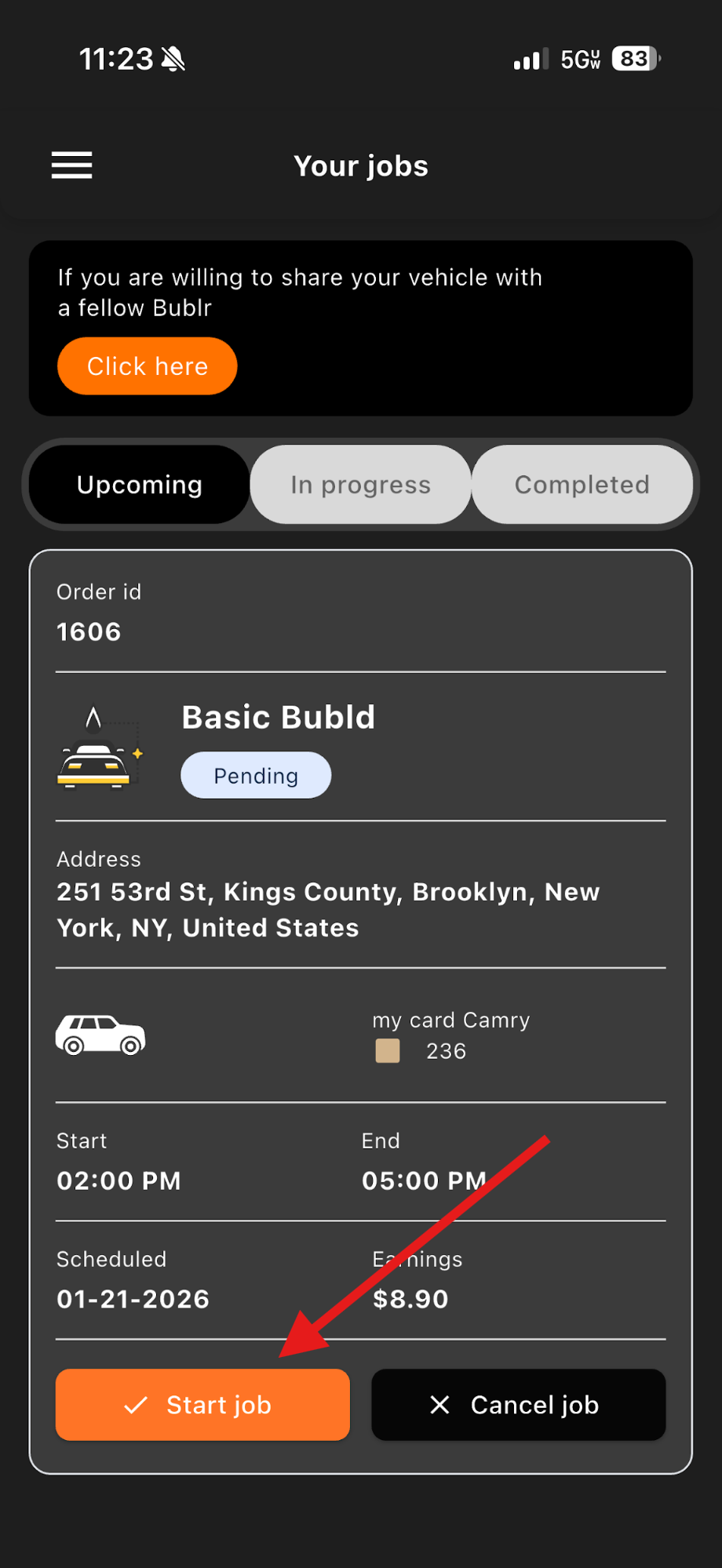
Start Job
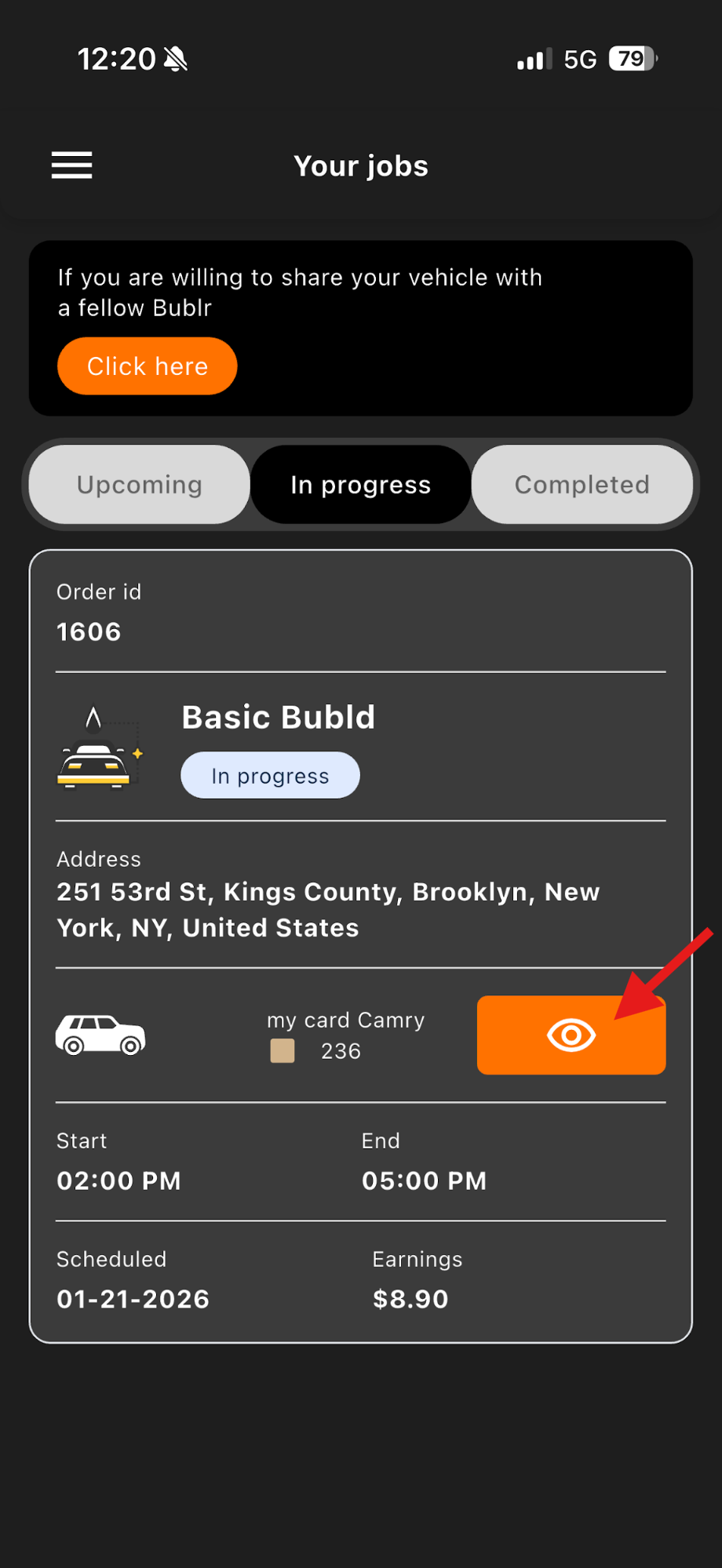
Job Started
Navigate to the Location
Inside the Job in Progress screen, tap the map icon to open your GPS navigation options. Select your preferred navigation app and head to the customer's address.
- 1Tap the map icon to see available GPS options.
- 2Choose your preferred navigation app — Google Maps, Apple Maps, Waze, or any installed GPS app.
- 3Follow the directions to the confirmed service address.
- 4If you have any trouble finding the location, re-check the address in the app before contacting support.
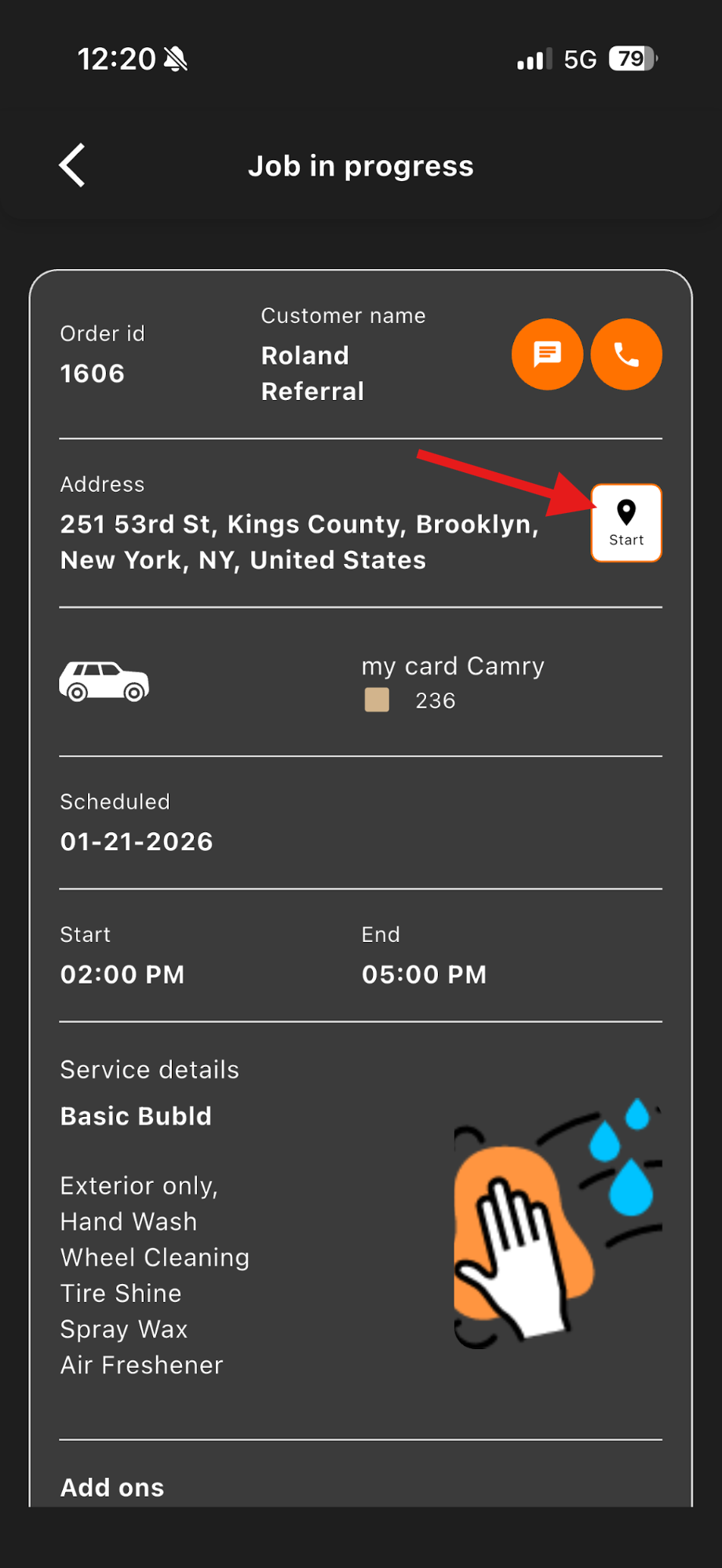
Navigate to Location
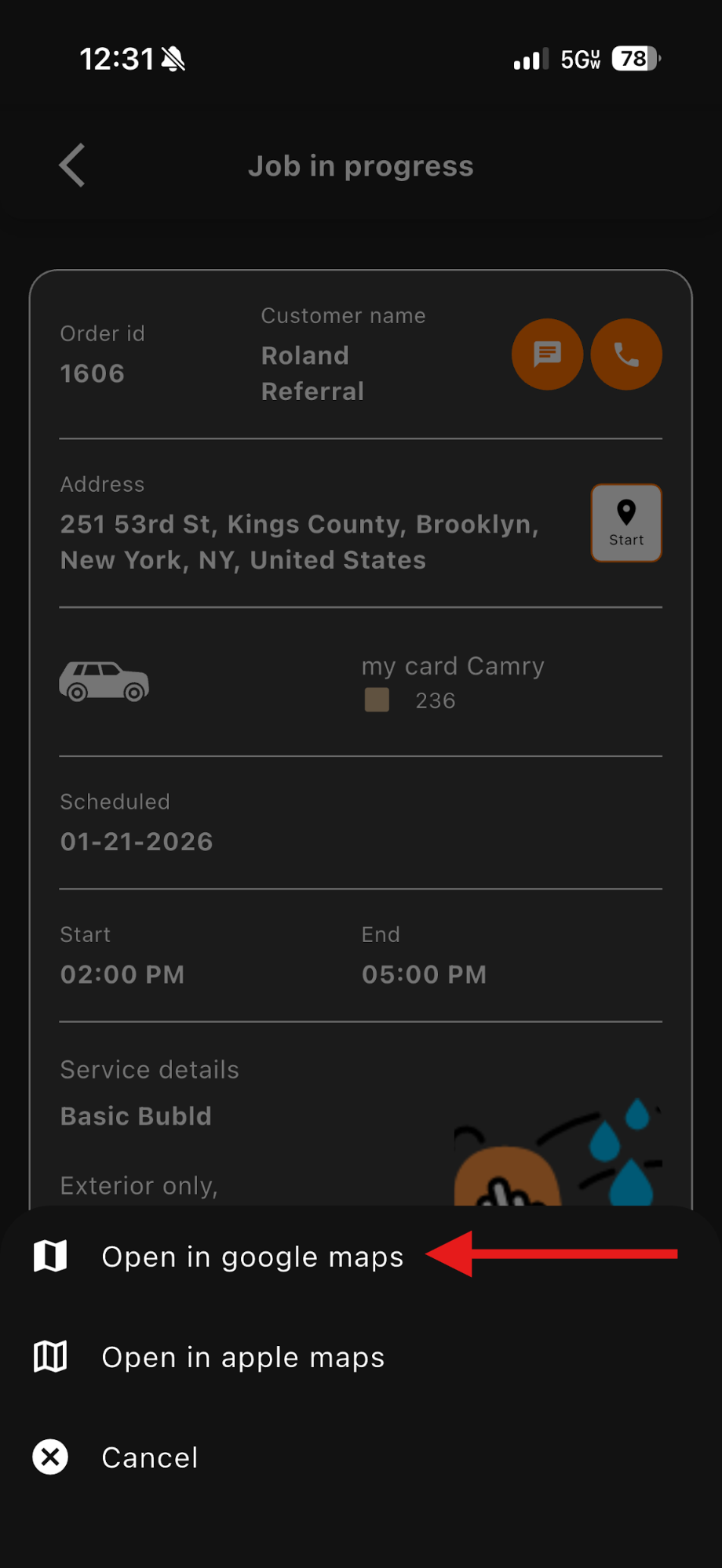
GPS Selection
Verify the Vehicle on Arrival
Before you begin any work, take a moment to confirm you have the correct vehicle. This protects you and the customer.
Vehicle Type
Match the type shown in the app.
Make
Confirm the manufacturer matches.
Color
Visually confirm the color is a match.
License Plate
Check the last 3 digits against the app.
If anything does not match — do not begin the wash. Tap Report a Problem immediately. A wrong vehicle wash is not covered by Bubld and could result in account review.
Upload Before Photos
Before photos are required for every job. They protect you if a customer disputes any pre-existing damage. Do not skip this step — it is the most important protective action you take as a Bublr.
- 1Scroll down in the Job in Progress screen to find the photo upload area.
- 2Tap the upload button to access the photo section.
- 3Take photos directly in the app or upload from your camera roll.
- 4Upload each photo into its corresponding folder.
- 5The Save button will highlight once all required photos are uploaded.
- 6Tap Save before proceeding to the wash.
Exterior-Only Package — Special Instruction
If the wash package only covers EXTERIOR work, upload angled exterior shots that clearly capture any existing damage on the vehicle. This gives you the same legal protection as interior photos.
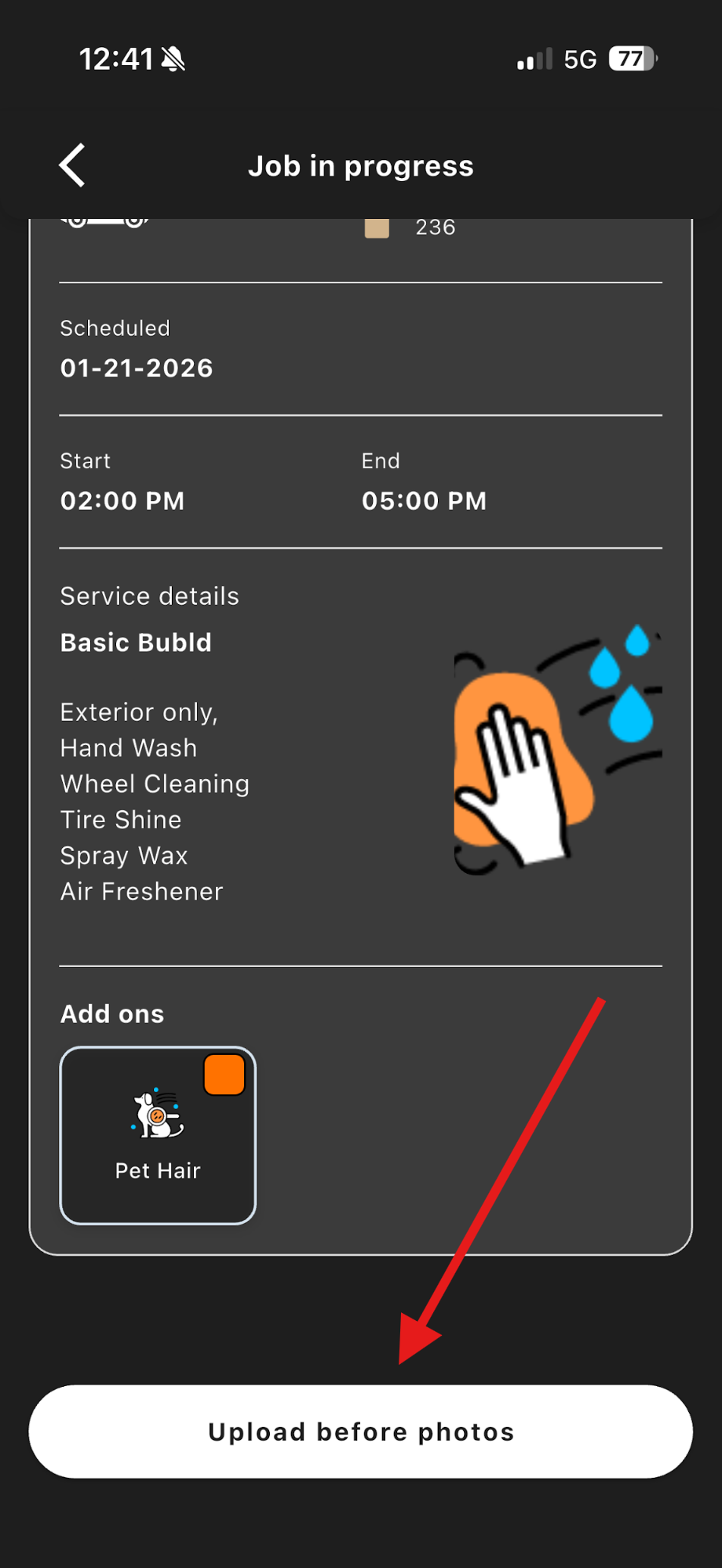
Upload Before Photos
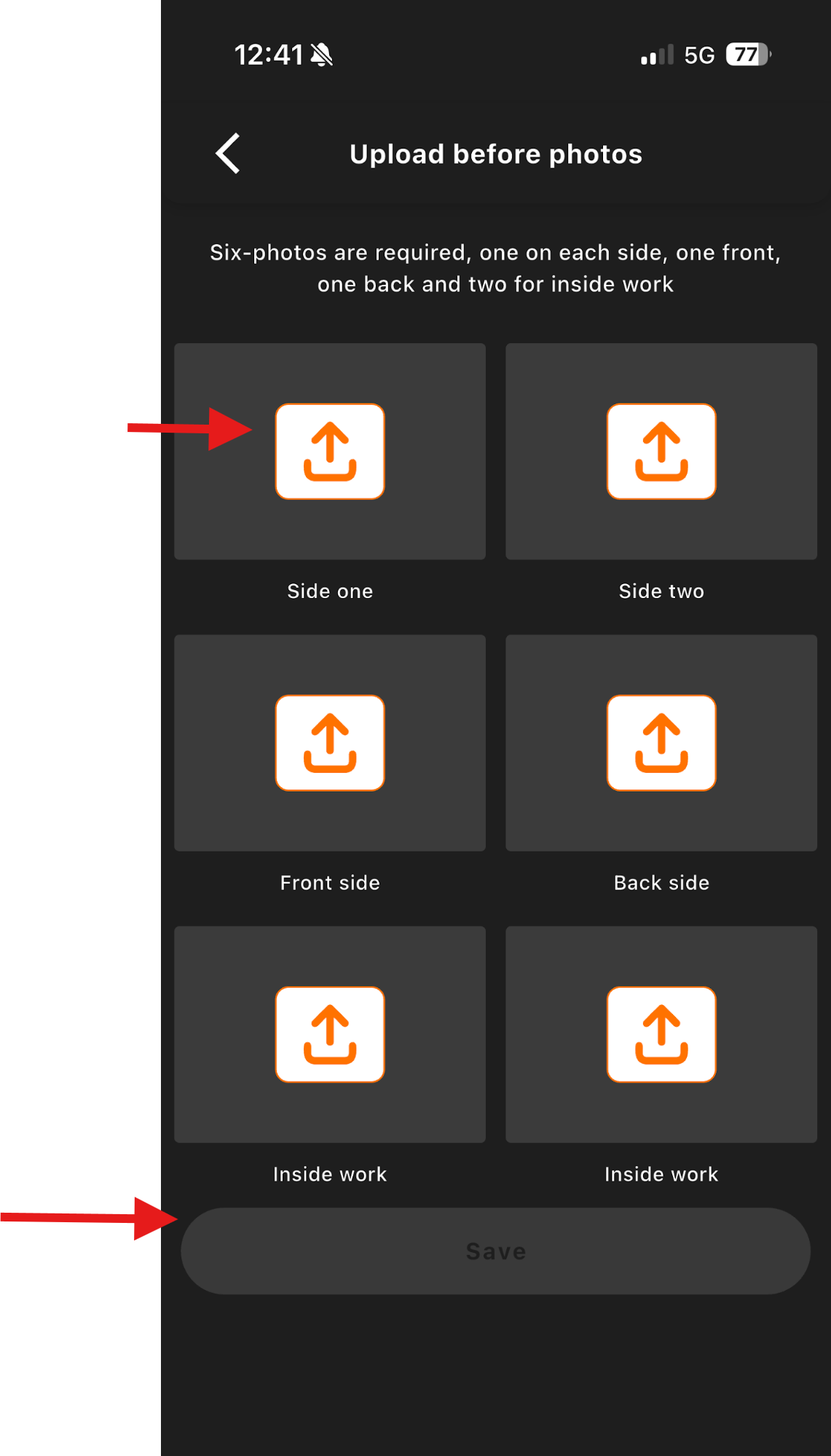
Photo Folders
Report Any Pre-Existing Issues
If there are any issues with the car, now is the time to "Report a Problem." Give as many details and pictures as possible.
- ●By reporting a problem this will create a "ticket" in the "Support" section of the app.
- ●You can check on the status of a ticket at any time in the support tab of the Menu's page.
- ●After clicking the "report issue" button (image 1), please click on the best suited option for your situation and provide as much detail as possible along with as many photos needed. (image 2)
- ●Once the report has been made successfully, there will be a pop-up notifying you of its completion. (image 3)
- ●Now you can proceed with the job.
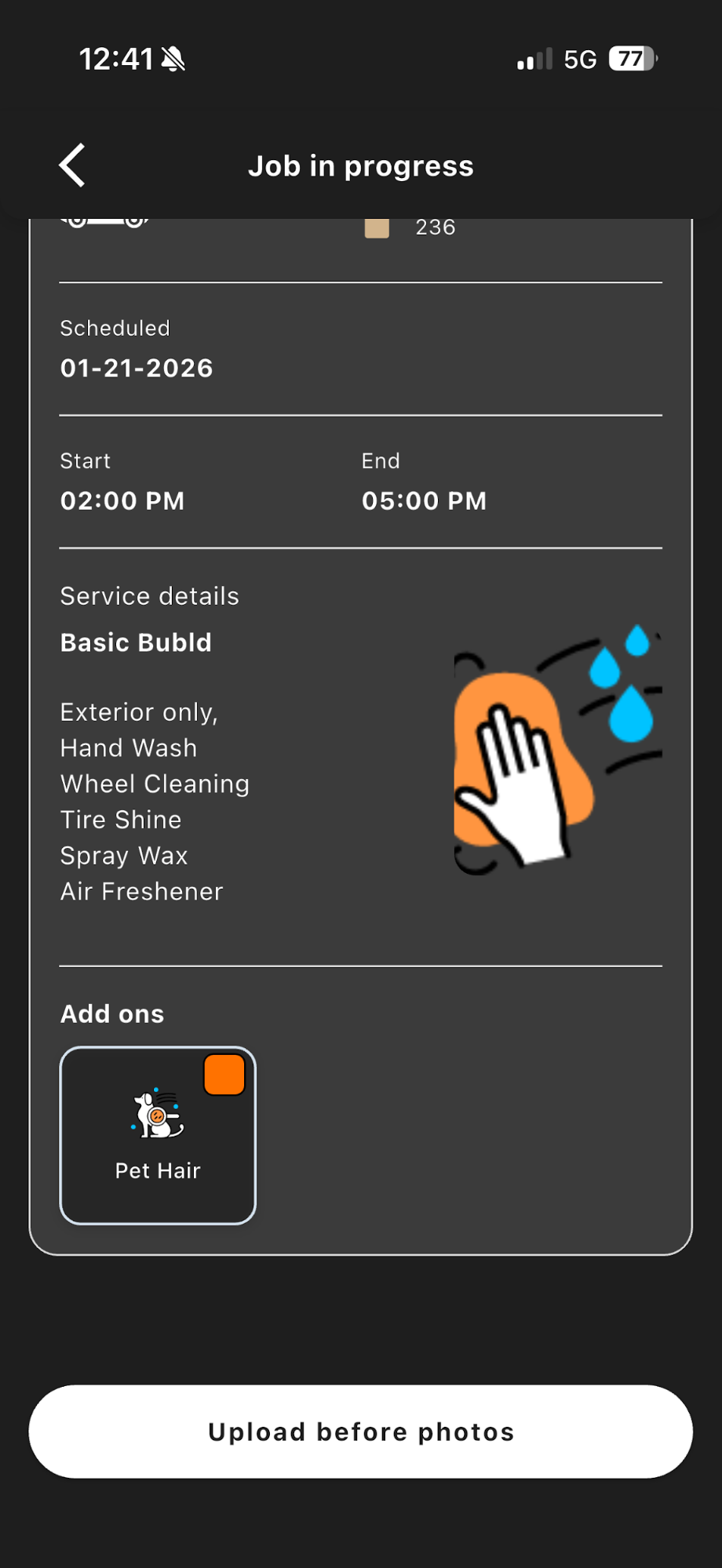
Report Issue
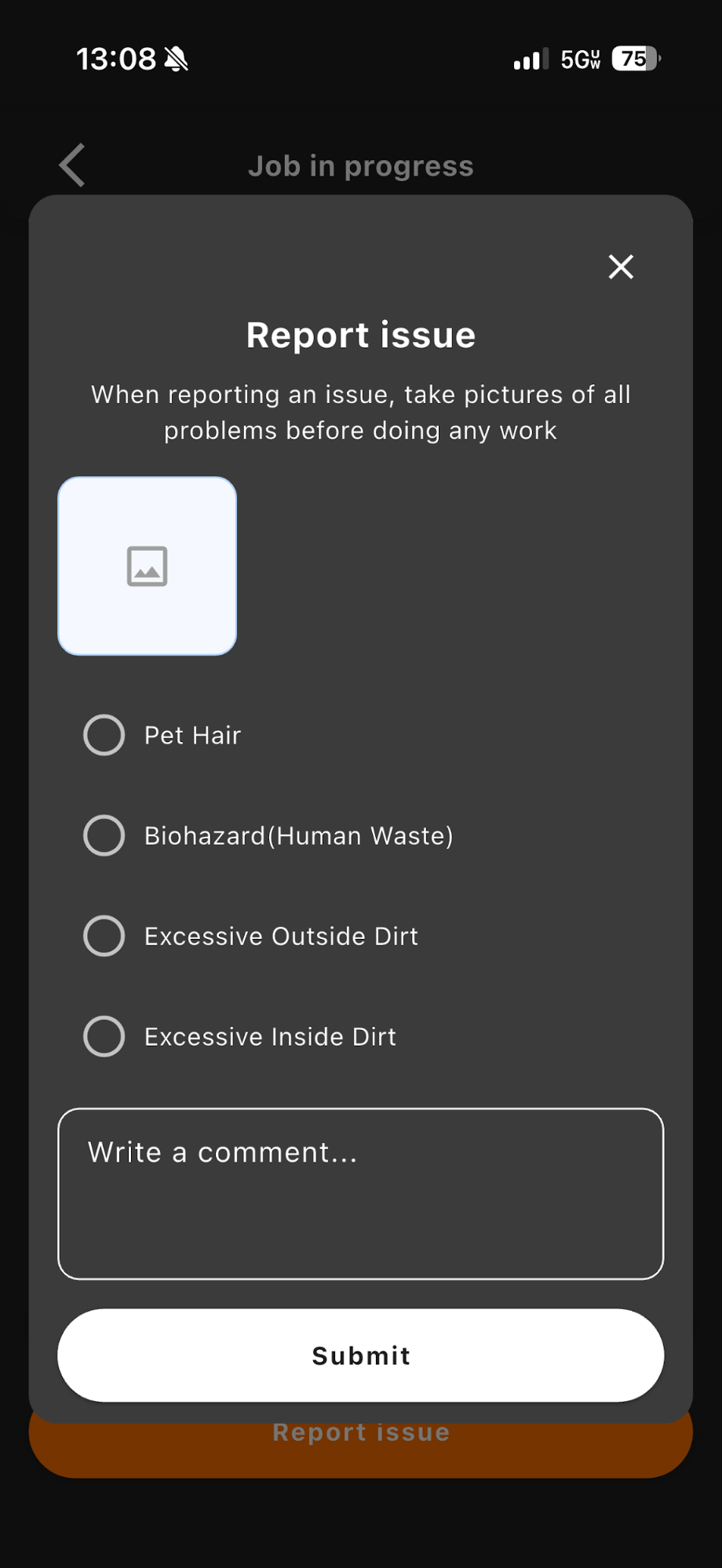
Select Option
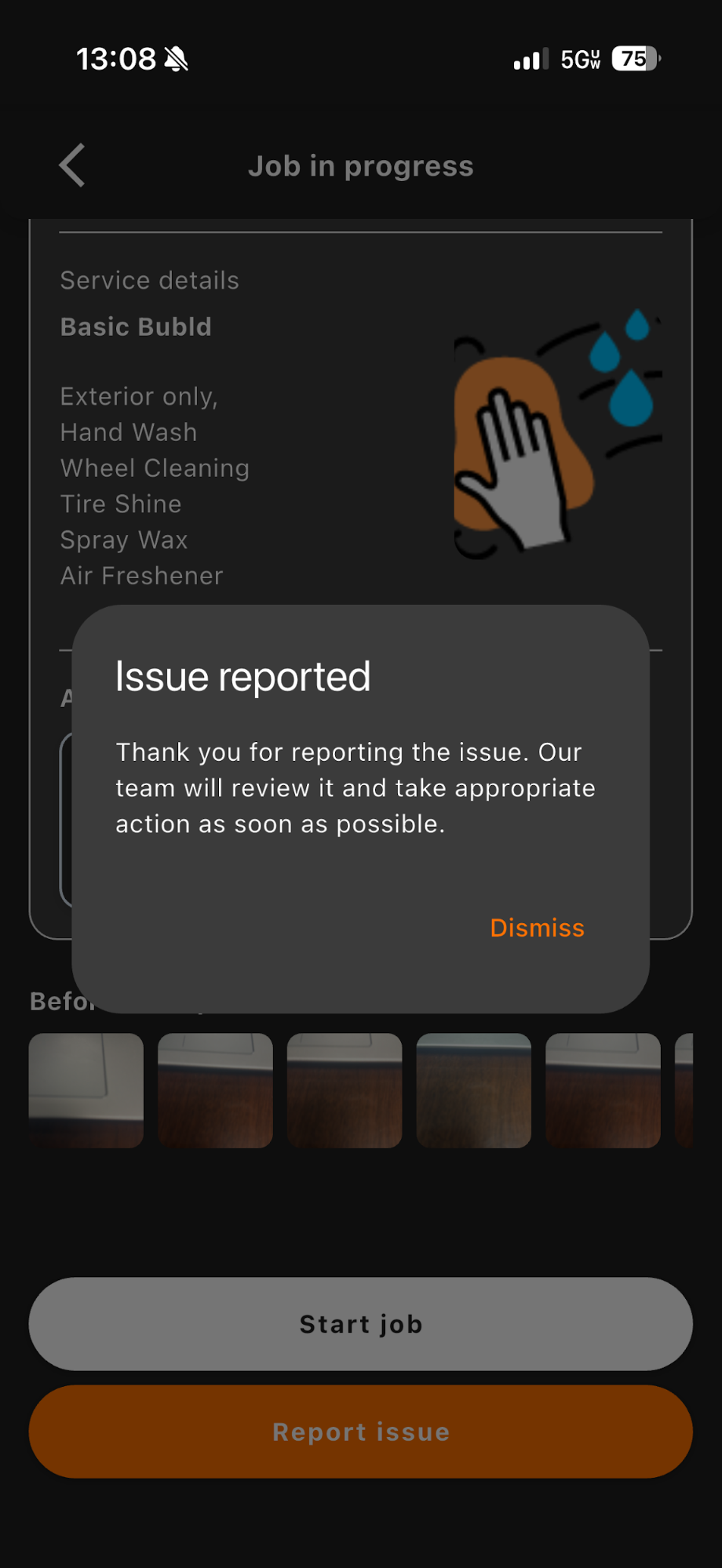
Confirmation
Start the Wash
Once you have arrived at the destination…
- ●Click on "Start Job" and get to washing!
- ●DON'T FORGET about the possible Add-ons (red circle) that the customer may have requested.
- ●We expect only excellent results, do your best.
- ●It is suggested to time yourself to see how well you improved.
- ●Remember you are your own boss, the faster you complete a wash, the faster you move to the next wash, and the more money you make, as long as you don't lower the quality of work and your rating.
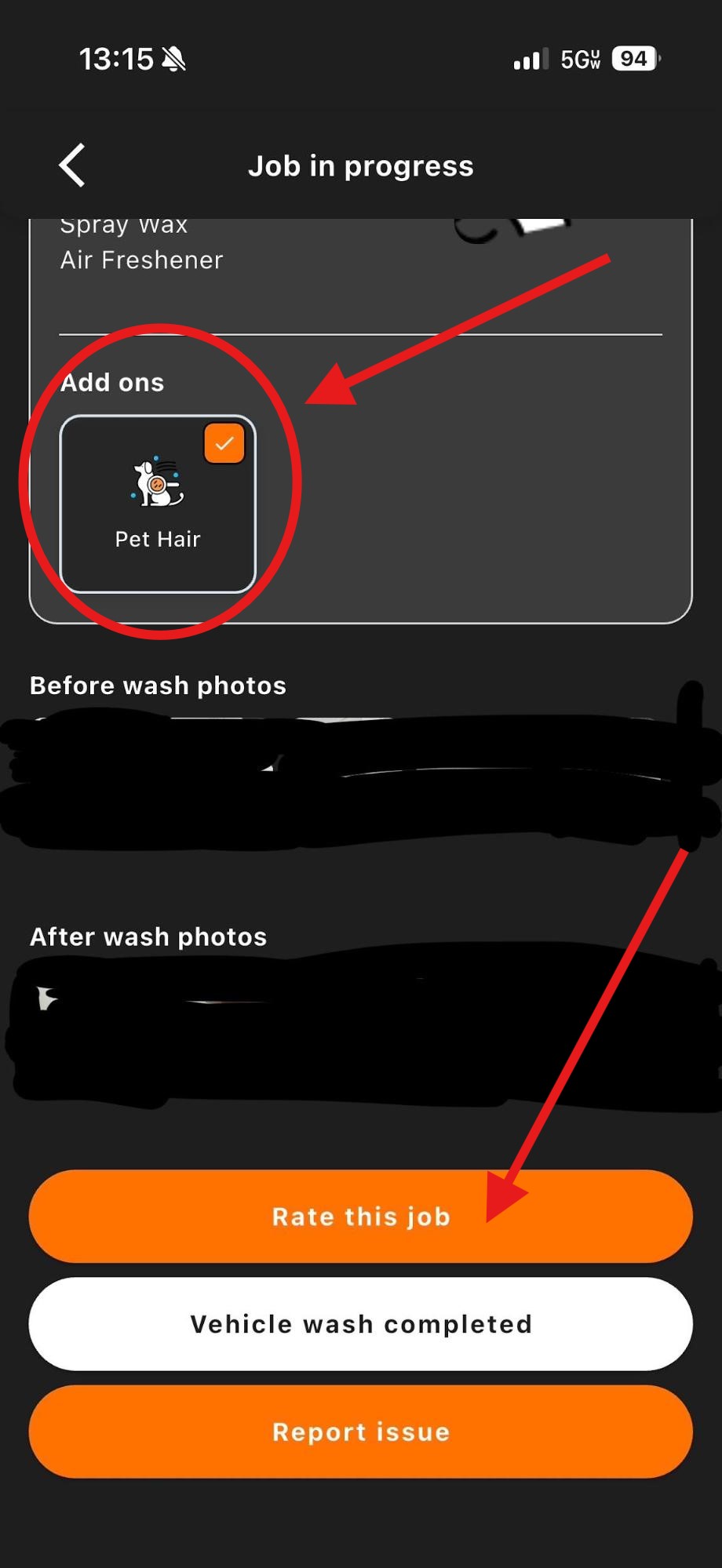
After the Job
- ●Make sure that any Add-ons the customer may have requested have been completed. Please take a look at Image 1 for details.
- ●Make sure to upload the AFTER photos. They can be found in the same place the Before photos were taken.
- ●If there was no interior work done please upload angled pictures of the washed vehicle.
- ●Don't forget to rate your washing experience! (refer to image 2)
Make SURE the add-on package has a checkmark to show it has been completed.
When you click on "Rate this job" you will be able to rate and tell us about your experience washing the car.
The following pop up shown in image 3 will show up once the wash has been fully completed and "vehicle wash completed" has been pressed.
The Bubld app gives you full control and customization over your profile, upcoming jobs, work history, and more. The best way to get started is by exploring the Menu page in order to familiarize yourself with all the app's features.
Add-ons Complete
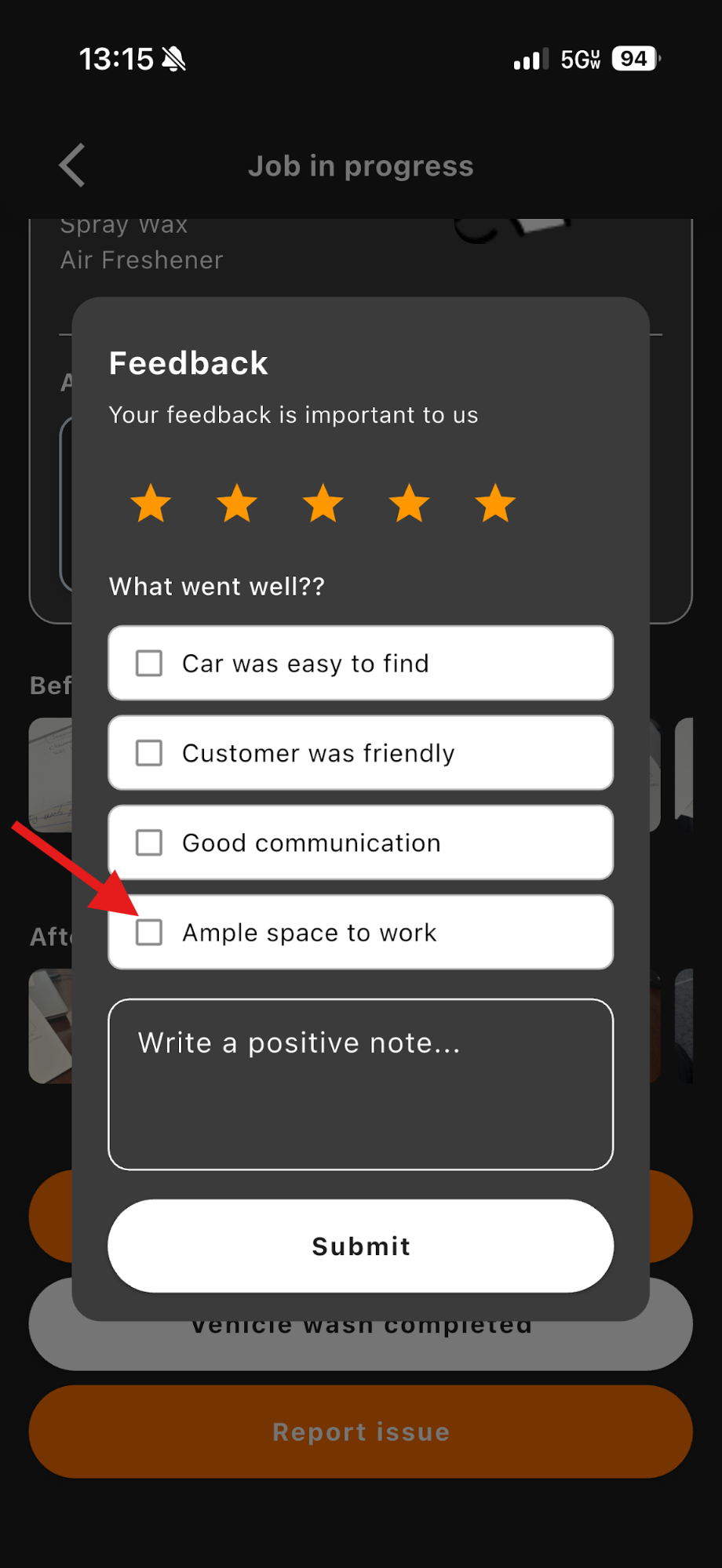
Rate This Job
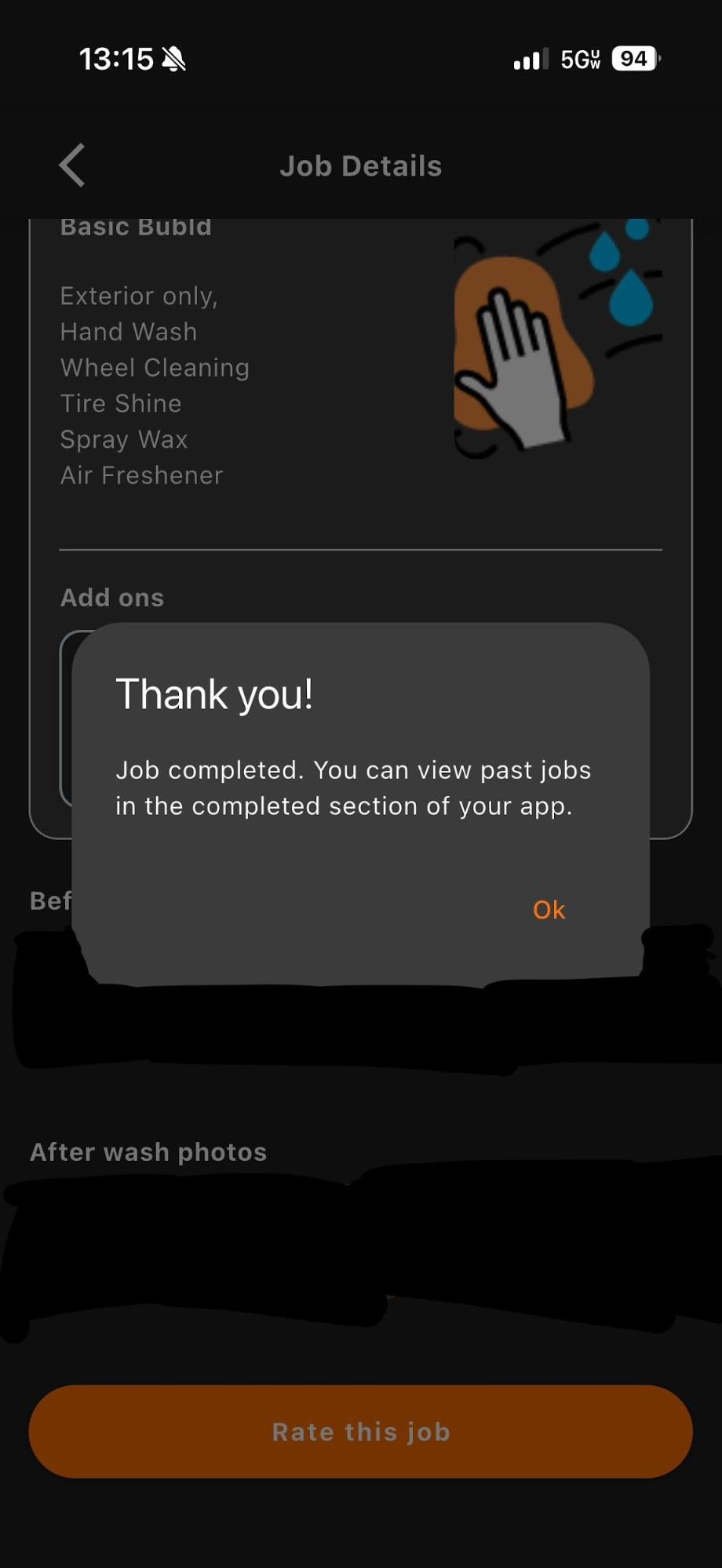
Wash Completed
Questions or Problems?
The Bublr app gives you full control over your profile, upcoming jobs, work history, and more. If you run into an issue at any point, here's how to get help.
In-App Support Ticket
Menu → Support → Submit a Ticket. Trackable and documented.
Email Support
Support@Bubld.com
Explore the Full Guide.
Each section below covers a specific part of the Bublr experience in detail. Select any topic to get started.
Getting Started
Complete onboarding walkthrough — app download to first job offer.
Job Selection
How to read a job offer and decide whether to accept.
Starting My Job
What to do from the moment you accept through job completion.
Menu Walkthrough
A full tour of every screen and feature in the Bublr app.
Be a Team Player
How Bublrs support each other and uphold quality standards.
Reporting Issues
How to report problems during or after a job.
Sharing Your Vehicle
Guidelines for Bublrs who share a vehicle with a partner.
Referring Bublrs
How the referral program works and how to earn from it.
Our Policy
Learn about Bublr's policies and guidelines.
Ready to Get Started?
You now know exactly how Bubld works. The next step is yours.
Legal Contractor Notice: Bublrs are independent contractors, not employees of Bubld. Availability, earnings, and workload vary by location and demand. Service areas are currently limited — check the app to confirm availability in your area.